




















Distraction-Free Mode as described here is TiCaNo Stopwatch v1.6.2, the build currently in both app stores — every screenshot below comes from it.
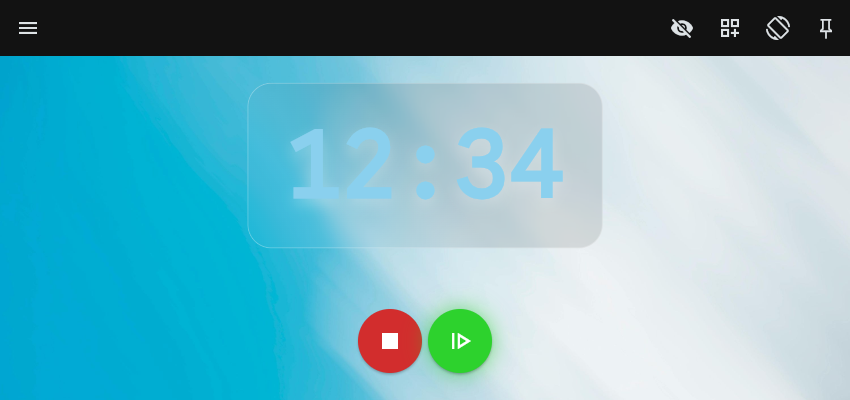
There is an eye icon in the app bar of TiCaNo Stopwatch. Tap it once and the screen changes shape: the laps panel is gone, the decimal fraction of the timer is gone, and what remains is a large timer and a row of controls, floating in empty space.
This is Distraction-Free Mode, and it is the cleanest feature in the app to describe — because it does exactly four things, does not pretend to do more, and keeps the one thing most “focus modes” wrongly take away. This is the first post in a series on the app’s features, so we will do it properly: what hides, what stays, what it costs, and what it is not.
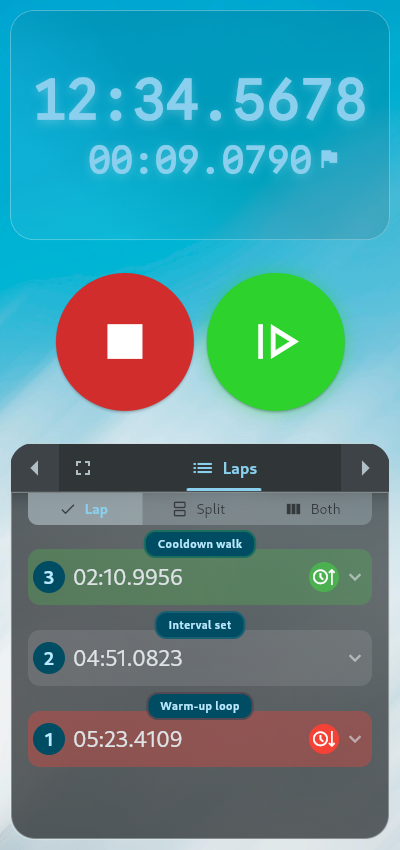
What it hides — all four things
The laps panel. The mode is a layout swap, not an overlay. The full three-panel view is replaced by a dedicated minimal layout: in portrait, five stacked panels — space, timer, space, controls, space. In landscape, the same arrangement inside a centred column, flanked by two spaces of its own. The laps list is not dimmed or collapsed. It simply is not in this layout, and the timer sits in the space it occupied.
The decimal fraction. However many decimal places your precision setting shows — up to four — Distraction-Free shows none. The minutes and seconds stay, full size; only the fraction after the decimal point goes. (While the mode is on, the precision slider in Settings is disabled, which is the honest way to say the two settings would fight.) What those decimals are, when they are visible, is its own post.

The current-lap timer. The small secondary readout under the main timer — your elapsed time within the lap you are running — is suppressed, even when laps exist.
The lap counter on the Lap button. The little numeric badge that tells you how many laps you have logged: hidden, even when the count is not zero.
That is the complete list. Seconds are not hidden. The timer is not reduced to minutes. Nothing else on the screen changes.

What it deliberately keeps
The controls.
The controls stay exactly where they were, in the controls panel, one tap away. This is the design decision the mode is built on: a distraction-free stopwatch that hides its own buttons is not focused, it is unusable. The mode removes what you read, never what you press.
And the calm surface is still a living layout underneath. The spacer panels are locked in place, but the borders between panels are resizable if you ever enter panel edit mode, and the timer and controls panels can trade places. The dividers are invisible outside edit mode, which is why the default view reads as one continuous calm rather than a grid. The sizes you settle on are remembered separately for portrait and landscape, so rotating the phone does not rotate your choices.
Two small touches finish it. Tapping the toggle confirms itself with a two-second notification — “Distraction-Free Mode turned ON” — so the change is never a surprise. And the setting persists across restarts: turn it on once, and the app opens the way you left it. It ships off by default; the full view is what a new install sees.
What it costs
Honesty compels the other column of the ledger. While the mode is on you cannot see your laps, so if the session is one where the record is the point — the experiment, the interval set — you will be flipping the mode off to check. Or trusting the app to have kept what you cannot see. It has: every lap you tap is still logged, named and exported exactly as before. The mode hides the record from view, never from existence. The current-lap readout is the same trade at smaller scale — the number is being kept, you just cannot watch it.
That is the honest price of calm: not data loss, only data out of sight. For the moments the mode is made for, that is the whole point. For the moments it is not, the eye icon is still one tap away.
What it is not
The boundaries, stated as plainly as the feature itself:
It is not fullscreen. The app has a separate fullscreen toggle that hides the app bar; Distraction-Free Mode does not touch it. The two are independent — you can run either without the other. (The app starts in fullscreen by default; in that state, tapping any empty area of the screen brings the app bar back for three seconds, which is how you reach the eye icon again without leaving the mode.)
It is not Pro. The mode is free, listed in the store description’s “built right” paragraph alongside portrait-and-landscape and twenty languages — and there is no upgrade gate anywhere on its path: not the app-bar button, not the Settings switch.
It is not a power trick. The mode changes nothing about how time is measured or how the display refreshes — the timer underneath is the same clock, recomputed the same way, at the same cadence. There is no battery-saving refresh reduction hiding behind the calm. What you lose is ink, not machinery.
It is not a novelty claim. Hiding secondary readouts is a common pattern in timer apps, and we claim nothing else. The mode shipped in version 1.6.0 on 19 August 2026, quietly, as a toggle — the changelog entry is one line.
Tested like it matters
Because the mode is a layout swap that people will flip mid-run, it is tested for exactly that. The transition test verifies that switching layouts keeps the timer’s element mounted across the swap: your running timer does not blink, reset, or rebuild when the screen changes shape around it. The panel-size bounds of both minimal layouts have their own test groups, in both modes, portrait and landscape.
The feature earned that. A mode you can only safely enter while stopped would not be distraction-free; it would just be another thing to think about.
The point
Every real-life use case we have written about — the practice session, the workout, the experiment — has a moment where the record matters and a moment where only the running number does. Distraction-Free Mode is for the second moment: one tap, four things gone, buttons kept, time intact.
Tap the eye when you want the room. Tap it again when you want the record back.
Sources
All app claims in this post were verified against the shipped TiCaNo Stopwatch v1.6.2, the build currently in both app stores — checked by running the build, not by reading marketing copy. Platform-behavior claims (Android’s foreground-service rules, iOS background limits) follow the official platform documentation for each current operating-system (OS) release.